Starting a presentation is often harder than designing it. You may know the subject, but turning scattered ideas into a logical slide sequence can take hours.
Gamma shortens that first-draft process. You can give it a topic, audience, purpose and a few instructions, then let it produce an outline and an editable presentation. The important part is knowing what to ask for—and what to check before sharing the result.
This guide explains how to use Gamma AI to create a presentation from a prompt, improve the generated outline, correct weak slides, verify important claims and export the finished deck.
Research note: Gamma changes its interface and plan limits periodically. The product details in this guide were checked against Gamma’s official documentation and pricing page in September, 2026.
Table of Contents
Quick Answer: How to Use Gamma AI for Presentations
To create a presentation with Gamma AI:
- Open Gamma and sign in.
- Select Create New AI.
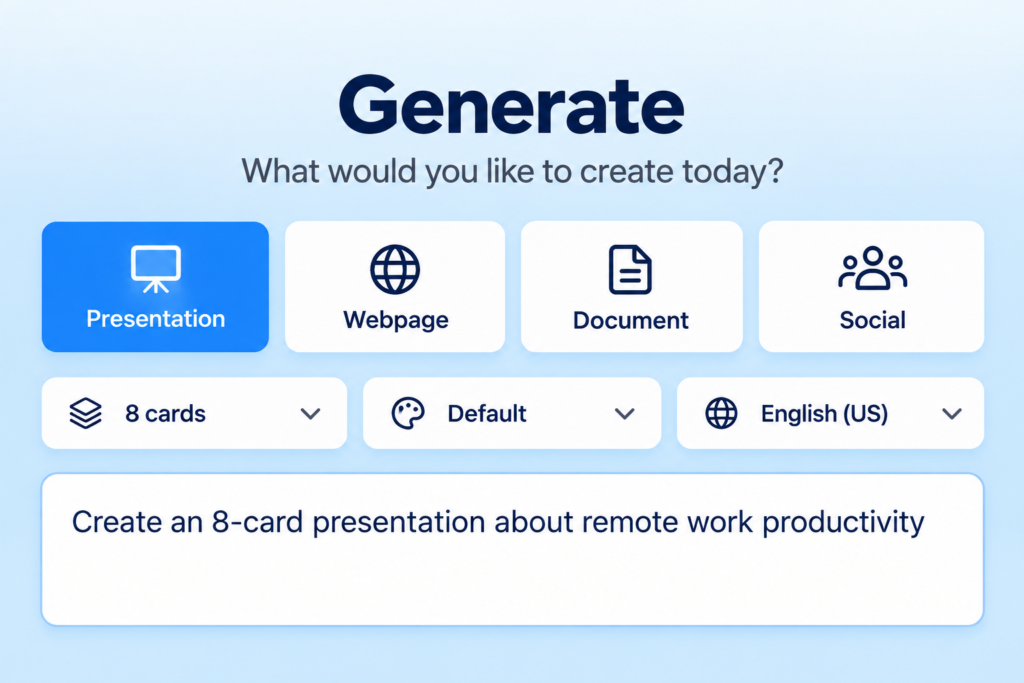
- Choose Generate if you are starting with a prompt.
- Select Presentation as the output.
- Describe the audience, purpose, structure, tone and visual direction.
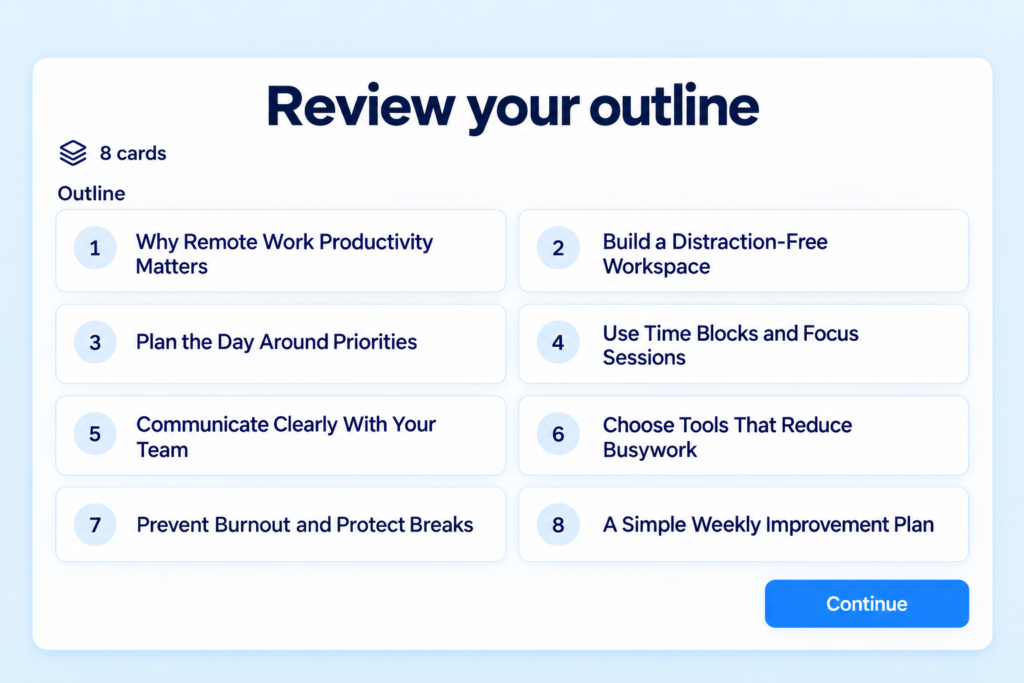
- Review and correct the proposed outline.
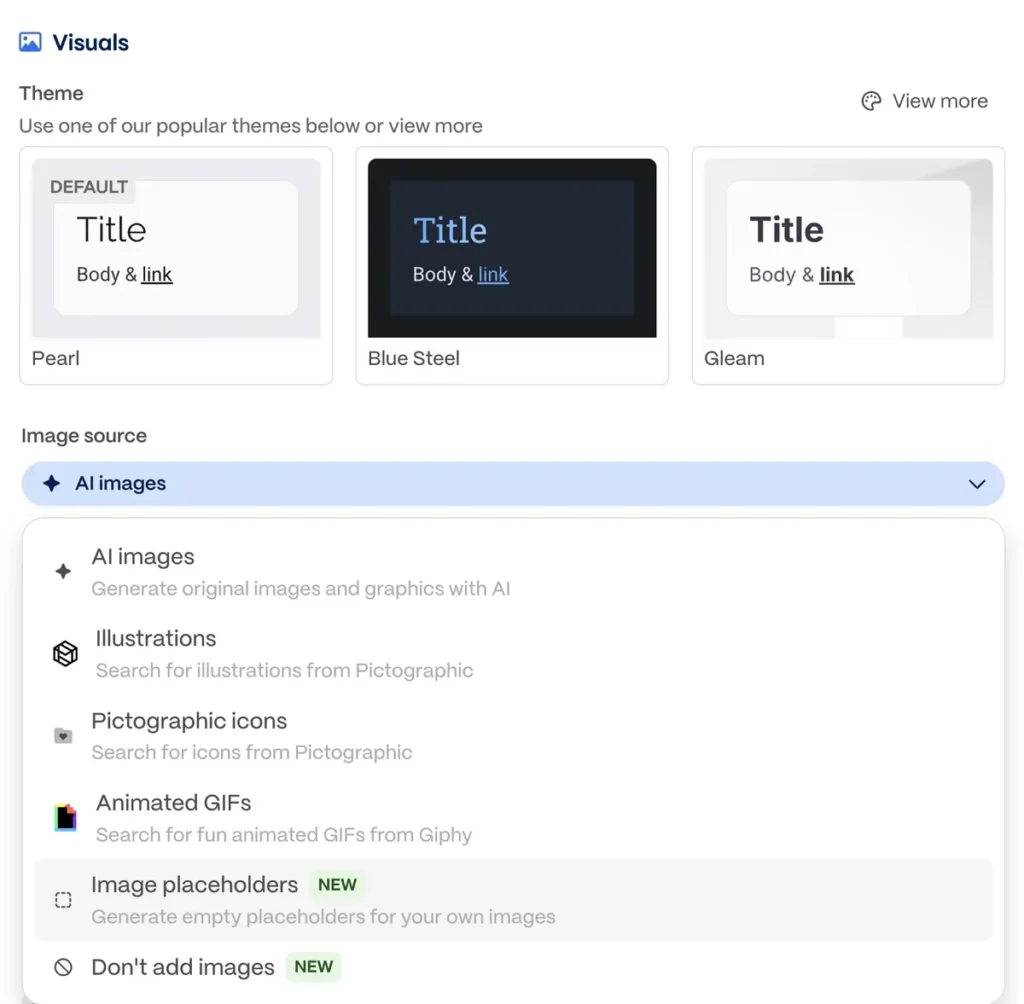
- Choose a theme and image source.
- Generate the presentation.
- Edit the wording, layout, images and supporting evidence.
- Present it in Gamma or export it to PowerPoint, PDF or Google Slides.
Gamma can generate the first version quickly, but it should be treated as a draft—not a finished, fact-checked presentation.
Before You Begin, Choose the Right Gamma Creation Mode
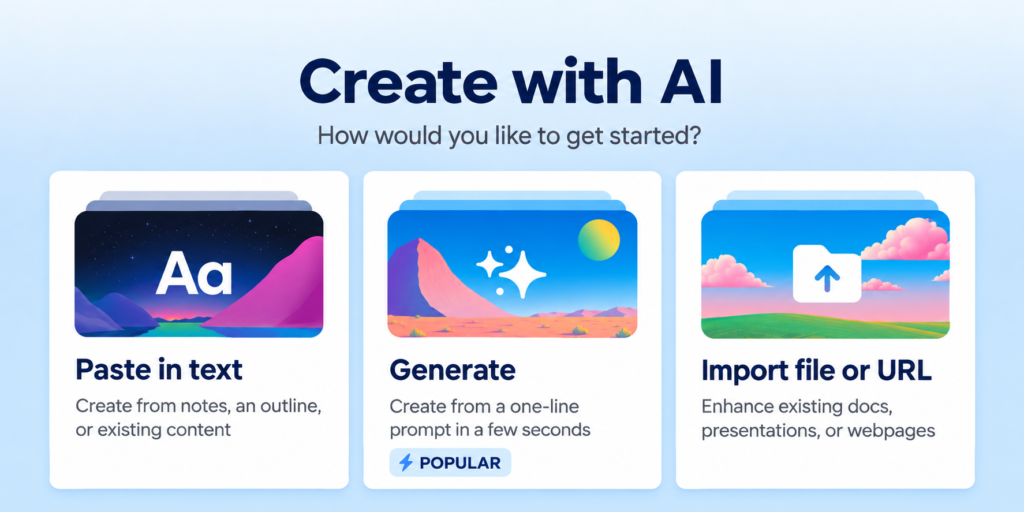
Gamma currently provides three main creation modes: Generate, Paste and Import. Choosing the correct one prevents unnecessary rewriting.
Gamma explains these options in its official presentation-creation guide.
Use Generate when you only have an idea
Choose Generate when you want Gamma to develop a presentation from a topic or detailed prompt.
This is the right mode when:
- You have not written the slide content yet.
- You need help developing the structure.
- You are brainstorming a lesson, proposal or report.
- You want a quick first draft that you will refine afterward.
Generate gives Gamma the most creative control, so it also requires the most careful review.
Use Paste when your content is already written
Choose Paste when you already have notes, an article, a script or an approved outline.
This is usually safer when:
- Your wording has already been reviewed.
- The presentation must follow an exact sequence.
- You do not want AI to invent the central argument.
- You mainly need Gamma to format existing material.
Paste is often better for client, academic or company work where accuracy matters more than brainstorming.
Use Import when converting an existing file
Choose Import when the source material already exists as a document, webpage, PDF or PowerPoint file.
Before importing a long PDF, consider extracting the most relevant sections first. Our guide to the best AI PDF summarizer tools can help you reduce a large source into usable notes before turning it into slides.
Importing a file does not remove the need to review it. Tables, quotations, footnotes and complex layouts may need manual correction.
How to Use Gamma AI to Create a Presentation From a Prompt
The following process uses Generate mode because that is what most people mean when searching for a Gamma AI presentation tutorial.
Step 1: Open Gamma and start a new AI project
Sign in to Gamma and select Create New AI from the dashboard.
Choose Generate, followed by Presentation. If Gamma displays several output formats, confirm that you are creating a presentation rather than a document, webpage or social post.
Do not enter a one-line topic immediately. First decide:
- Who will view the presentation?
- What should they understand or do afterward?
- How long should the presentation be?
- Which facts or examples must be included?
- What tone is appropriate?
- Will it be presented live or read independently?
Those decisions give your prompt direction.
Step 2: Define one clear presentation outcome
A presentation becomes unfocused when it tries to inform, persuade, teach and sell at the same time.
Write one outcome before creating your prompt. For example:
- Help beginner freelancers choose an invoicing system.
- Persuade a client to approve a website redesign.
- Teach students how photosynthesis works.
- Summarize quarterly performance for company leadership.
- Explain a research paper to a non-specialist audience.
A strong outcome gives every slide a reason to exist.
Step 3: Write a detailed Gamma AI presentation prompt
A useful Gamma AI presentation prompt should contain six elements:
- Topic: What is the presentation about?
- Audience: Who will see it?
- Outcome: What should they learn, decide or do?
- Structure: Which sections should be included?
- Constraints: Slide count, tone, reading level and exclusions.
- Evidence rules: Which facts require sources or verification?
Here is a complete example:
Create a 10-slide presentation for beginner freelancers comparing the main ways to invoice clients. The goal is to help them choose a simple invoicing process and avoid late payments. Include a title slide, the problems caused by informal invoicing, essential invoice fields, free and paid software options, payment methods, late-payment prevention, a simple workflow and a final action checklist. Use plain English, short headings and no more than four concise points per slide. Do not invent prices, statistics or legal requirements. Mark any claim that needs independent verification. Use a clean professional visual style with realistic freelance-work imagery.
This works better than “make a presentation about freelance invoicing” because Gamma receives an audience, purpose, structure and quality boundary.
Gamma also maintains an official prompt library with examples for educators, marketers, consultants and sales professionals.
Step 4: Review the outline before generating the deck
Gamma may propose an outline before building the full presentation. This is the best point to fix the structure.
Check whether the outline:
- Answers the main question early
- Follows a logical sequence
- Gives each slide one clear purpose
- Includes the necessary evidence or examples
- Avoids repeating the same point
- Ends with a meaningful conclusion or next step
Remove slides that only restate the title. Combine overlapping sections. Move background information later if the audience needs the answer first.
For a persuasive presentation, a useful sequence is:
- Current problem
- Why the problem matters
- Proposed solution
- Evidence or demonstration
- Risks and limitations
- Recommended next step
For a teaching presentation, use:
- Learning objective
- Essential background
- Core explanation
- Worked example
- Common mistake
- Practice or discussion
- Summary
A polished design cannot rescue a weak argument, so do not approve the outline merely because it looks complete.
Step 5: Choose the theme and image approach
Choose a theme that suits the audience rather than selecting the most decorative option.
A client proposal normally needs restrained colors and strong visual hierarchy. A classroom presentation can use more variety, but the content must remain readable. An executive update should make the central numbers easy to find.
Gamma may offer AI-generated images, stock images, web images, placeholders or no images. If the subject requires accuracy—such as a software interface, product, person, medical subject or historical object—use verified images or your own screenshots.
For generated visuals, Gamma recommends specifying the subject, style, setting, mood and composition. Its AI image-prompt guide provides additional guidance.
Use image placeholders when you intend to add approved brand photography or screenshots later. This is often safer than accepting unrelated AI visuals.
Step 6: Generate the presentation
After approving the outline, theme and image settings, generate the deck.
Review the complete presentation once without editing. Ask:
- Does the opening make the purpose clear?
- Can someone follow the story without an explanation?
- Are any slides unusually dense or empty?
- Has Gamma introduced claims that were not in the prompt?
- Do the visuals support the message?
- Does the ending give the audience a conclusion or action?
This first review helps you identify structural problems before spending time polishing individual sentences.
Step 7: Edit weak slides with AI and manual controls
Gamma’s documentation says you can use the sparkle icon on an individual slide to request AI-assisted changes. Multi-slide AI editing may depend on the plan you use.
Useful editing instructions include:
- “Reduce this card to three concise points.”
- “Explain this for a non-technical audience.”
- “Replace the generic introduction with a direct problem statement.”
- “Turn this paragraph into a three-step process.”
- “Remove repeated information from this card.”
- “Add a limitation without changing the recommendation.”
- “Rewrite this conclusion with one clear next step.”
Do not use AI editing for every minor change. Directly edit short sentences, headings and labels when manual editing is faster.
Gamma’s editing and formatting documentation covers layouts, themes, cards and other design controls.

Step 8: Apply the Tool Sphera three-pass review
Instead of editing content, evidence and design at the same time, review the presentation in three separate passes.
Pass 1: Structure
Check the argument and slide order.
- Does every slide advance the presentation?
- Is important information introduced before it is used?
- Are repeated slides combined?
- Is the conclusion supported by the preceding content?
Pass 2: Evidence
Check every factual claim.
- Verify statistics at their original source.
- Confirm current product features and prices.
- Check quotations against the original publication.
- Replace vague claims such as “studies show” with a named source.
- Remove claims you cannot verify.
- Confirm that any chart matches the underlying numbers.
If you need help locating and organizing reliable sources, see our guide to the best AI research tools.
Pass 3: Design and delivery
Check whether the presentation works visually and practically.
- Keep headings short.
- Break dense cards into smaller ideas.
- Use consistent image styles.
- Maintain readable contrast.
- Avoid decorative elements that compete with the content.
- Check the deck on the screen or projector that will be used.
- Rehearse the presentation aloud.
This three-pass method prevents a visually polished deck from hiding weak reasoning or unsupported claims.
Copyable Gamma AI Presentation Prompt Template
Use this template when you want to create a presentation with Gamma AI but do not know how to structure the prompt:
Create a [number]-slide presentation about [topic] for [specific audience].
The goal is to help the audience [understand, decide, approve, learn or do something].
Include:
- [Required section 1]
- [Required section 2]
- [Required section 3]
- [Example, demonstration or evidence]
- [Limitations, risks or common mistakes]
- [Conclusion or next action]
Use a [professional, conversational, academic or beginner-friendly] tone. Keep each slide focused on one idea. Use short headings and no more than [number] concise points per slide.
Use [visual style] imagery and avoid [unwanted visual style].
Do not invent facts, prices, quotations, citations or statistics. Clearly mark any information that requires verification.
Prompt example for a student presentation
Create an eight-slide presentation explaining renewable energy to high-school students. Cover solar, wind, hydroelectric and geothermal energy, including one advantage and limitation for each. Add a simple comparison, one real-world example and three discussion questions. Use plain English and define technical terms. Do not invent statistics; mark figures that require a source.
Prompt example for a client proposal
Create a nine-slide website-redesign proposal for the owner of a local accounting firm. Explain the current website problems, the business impact, recommended changes, project stages, deliverables, timeline assumptions, client responsibilities and next step. Use a calm, professional tone. Do not invent traffic, conversion or revenue figures.
Prompt example for a business update
Create a 10-slide quarterly performance presentation for department leaders. Include the quarter’s objectives, results against targets, important wins, missed targets, likely causes, risks, next-quarter priorities and decisions required from leadership. Use concise executive language. Use placeholders where verified company data must be inserted.
How to Fix Common Gamma AI Presentation Problems
The presentation is too generic
Cause: The prompt describes only the topic.
Fix: Add the audience, desired outcome, required sections, real context and exclusions.
Instead of:
Create a presentation about project management.
Use:
Create an eight-slide presentation for solo freelance designers who struggle to track deadlines across several clients. Explain a simple weekly project-management workflow using plain language. Include task capture, prioritization, client approvals, deadline tracking and a Friday review checklist.
The slides contain too much text
Ask Gamma to reduce each slide to one message and three or four supporting points. Move explanation into speaker notes or divide the slide.
Do not shrink the font simply to preserve every sentence. A presentation is not an article displayed on a screen.
The outline repeats itself
Return to the outline and assign each slide one job. Delete or merge slides that reach the same conclusion.
Repeated sections often appear when the original prompt lists similar ideas using different words.
The images do not match the subject
Replace generic images with your own screenshots, approved photography, charts or more specific image prompts.
For a software tutorial, an authentic interface screenshot is usually more useful than an AI-generated picture of someone using a laptop.
Gamma invents a number or source
Remove the unsupported claim or replace it with verified information from the original source.
Never cite a search-result snippet, AI summary or another presentation as if it were the primary evidence. Gamma is a creation tool, not a guarantee that every generated claim is correct.
The deck looks attractive but the argument is weak
Switch to Structure Pass before doing more design work. Write the conclusion in one sentence, then check whether the preceding slides genuinely support it.
If they do not, change the content—not the theme.
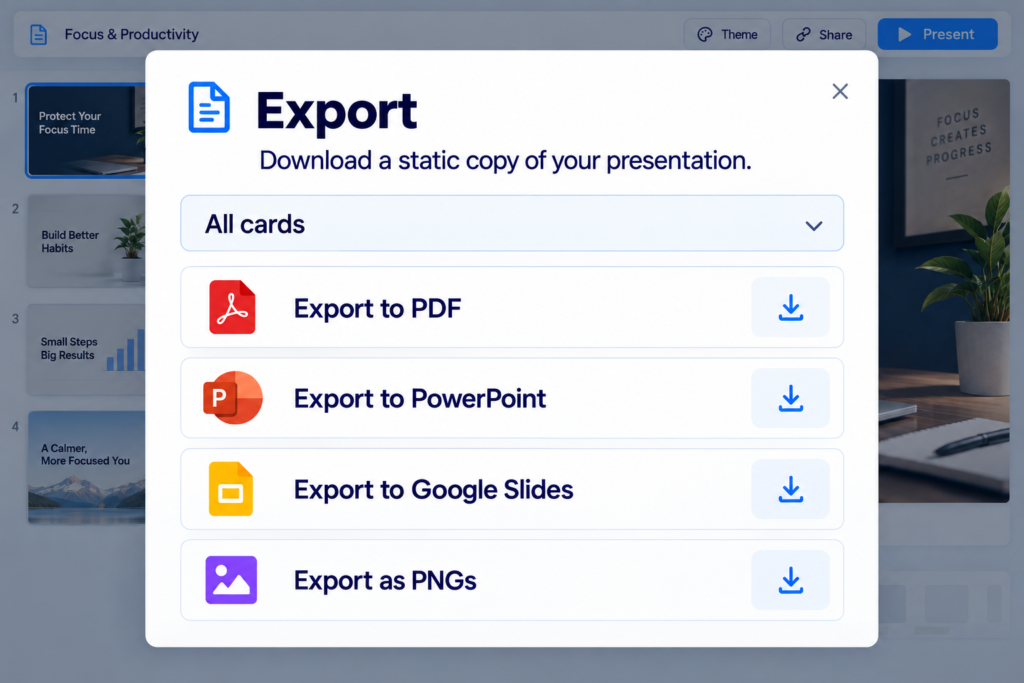
How to Export Gamma to PowerPoint Without Surprises
Gamma’s current Free plan lists exports to PPTX, PDF, PNG and Google Slides. These options are confirmed on the official Gamma pricing page.
After exporting Gamma to PowerPoint:
- Open the PPTX file in PowerPoint.
- Check every slide for shifted text or altered spacing.
- Confirm that fonts are available on the presentation computer.
- Inspect image cropping.
- Test embedded links and media.
- Review speaker notes.
- Check animations or interactive elements you expected to retain.
- Run the presentation in full-screen mode.
- Save a PDF backup.
Gamma’s web-native cards and PowerPoint slides do not behave identically. If the final presentation must be edited extensively in PowerPoint, export early and test before completing the entire deck.
Use PDF when preserving the visual appearance is more important than editing. Use Gamma’s share link when you want the web-native experience and have checked the viewing permissions.
Is Gamma AI Free?
Yes. Gamma currently offers a Free plan that allows up to 10 slides per prompt. According to its pricing page, the Free plan also supports basic presentations, documents, websites, social content and images, along with PDF and PPTX imports and several export formats.
The Plus plan currently increases the limit to as many as 100 slides per prompt and adds features such as removing Gamma branding and access to more advanced image models. Pro and Ultra add further model, branding, analytics, sharing, domain and API capabilities.
Plans and limits can change, so verify the current Gamma pricing and plan details before publishing a price-sensitive recommendation or buying a subscription.
Is Gamma Safe for Confidential Presentations?
Do not upload confidential client information, personal data, unreleased financial results or protected company material merely because a presentation tool is convenient.
Before using Gamma for sensitive work:
- Read Gamma’s current privacy policy.
- Check your employer’s AI and data-handling rules.
- Remove personal or commercially sensitive information.
- Replace confidential figures with placeholders.
- Confirm workspace and sharing permissions.
- Ask the information owner for approval when required.
Gamma states that it is SOC 2 Type II compliant, but a compliance certification does not automatically mean every type of confidential information is appropriate to upload. Your organization’s rules still apply.
When Should You Use Gamma Instead of Another Presentation Tool?
Gamma is a strong option when you want to move quickly from a prompt, outline, article or document to a polished web-native presentation.
It may be less suitable when:
- Your organization requires an exact PowerPoint master.
- You need advanced PowerPoint animations.
- Every element must follow strict brand positioning.
- The presentation will be edited offline by several PowerPoint users.
- You need complete manual control over complex slide layouts.
If you are still choosing a platform, our comparison of the best AI presentation makers explains how Gamma differs from Canva, Beautiful.ai, Plus AI and other presentation tools.
Frequently Asked Questions
Can Gamma create a presentation from one prompt?
Yes. Choose Generate, select Presentation and enter a prompt describing the topic, audience, outcome, structure and style. Review the outline before allowing Gamma to build the complete deck.
Can Gamma make a presentation from a PDF?
Yes. Gamma’s Import mode supports PDF and PPTX files. Review the converted content carefully because complex formatting, tables and citations may not transfer perfectly.
Can I edit a Gamma presentation after it is generated?
Yes. You can manually change the text, images and layouts. Gamma also provides AI-assisted editing through its sparkle controls, although some multi-slide capabilities may depend on your plan.
Can Gamma export to PowerPoint?
Yes. Gamma currently lists PPTX export on its Free plan. Always inspect the exported file because web-native layouts may change when converted into PowerPoint slides.
Does Gamma provide reliable citations automatically?
Do not assume every generated citation or factual claim is reliable. Verify important information against the original source and add direct source links yourself.
Can I remove Gamma branding?
Gamma’s current pricing page lists branding removal as a Plus feature. Check the latest plan details because limits and features may change.
Can Gamma create presentations in different languages?
Gamma supports creating content in multiple languages. Write the prompt in the required language and explicitly state the audience, region and preferred level of formality. Review the translation before presenting it.
What makes a good Gamma AI presentation prompt?
A good prompt defines the audience, outcome, structure, slide count, tone, visual direction and factual boundaries. It tells Gamma what success looks like instead of providing only a topic.
Final Checklist Before Sharing a Gamma Presentation
Before presenting, exporting or publishing your deck, confirm that:
- The opening explains the purpose.
- Each slide has one clear job.
- The argument follows a logical sequence.
- Statistics and quotations have been verified.
- Current prices and product features are accurate.
- Images are relevant and properly licensed.
- No confidential information has been exposed.
- Text remains readable on the intended screen.
- Links work.
- The PPTX export has been checked in PowerPoint.
- A PDF backup exists.
- Sharing permissions match the intended audience.
- The final slide gives a conclusion or next step.
Learning how to use Gamma AI is not just learning where to enter a prompt. The better skill is controlling the structure, evidence and final quality of what the tool produces. Use Gamma to accelerate the first draft. Keep responsibility for the final presentation yourself.