Email AI used to mean autocomplete and a few suggested replies. It can now summarize long conversations, search an inbox using ordinary questions, prioritize incoming messages, draft replies in your voice, identify follow-ups, and help schedule meetings.
The harder question is no longer whether AI can help with email.
It is deciding how much of your inbox you want it to control.
Some assistants, including Gemini and Microsoft Copilot, work natively inside Gmail or Outlook. Tools such as Fyxer and MailMaestro add intelligence without requiring you to leave your familiar inbox. Superhuman and Shortwave provide an entirely different email interface.
Those are not interchangeable experiences.
This research-based guide compares the best AI email assistants for Gmail and Outlook by compatibility, workflow, drafting, prioritization, automation, privacy, pricing, and the amount of control you retain.
Product features and pricing were checked against current official sources on September 25, 2026. We did not pretend to personally test products we have not used.
Table of Contents
Quick Answer: Which AI Email Assistant Is Best?
The best choice depends on whether you want to keep or replace your current email interface.
- Gemini in Gmail is the strongest native choice for people already working in Google Workspace.
- Microsoft Copilot in Outlook is the strongest native choice for Microsoft 365 users.
- Superhuman Mail is the best full replacement client for professionals managing Gmail or Outlook accounts who value speed and advanced inbox control.
- Shortwave is the best AI-first replacement for Gmail users who need natural-language search and deeper inbox organization.
- Fyxer is the best option for automated triage, prepared replies, and meeting context without leaving Gmail or Outlook.
- MailMaestro is the strongest low-cost add-in for drafting, improving, and summarizing emails.
- SaneBox is best for prioritizing and filtering email without replacing your current email app.
- Fireflies Email Assistant is best when email replies need context from previous meetings.
If you already pay for Google Workspace or Microsoft 365, start with the native assistant available in your existing ecosystem. Add or replace your inbox only when the native tool fails to solve a specific recurring problem.
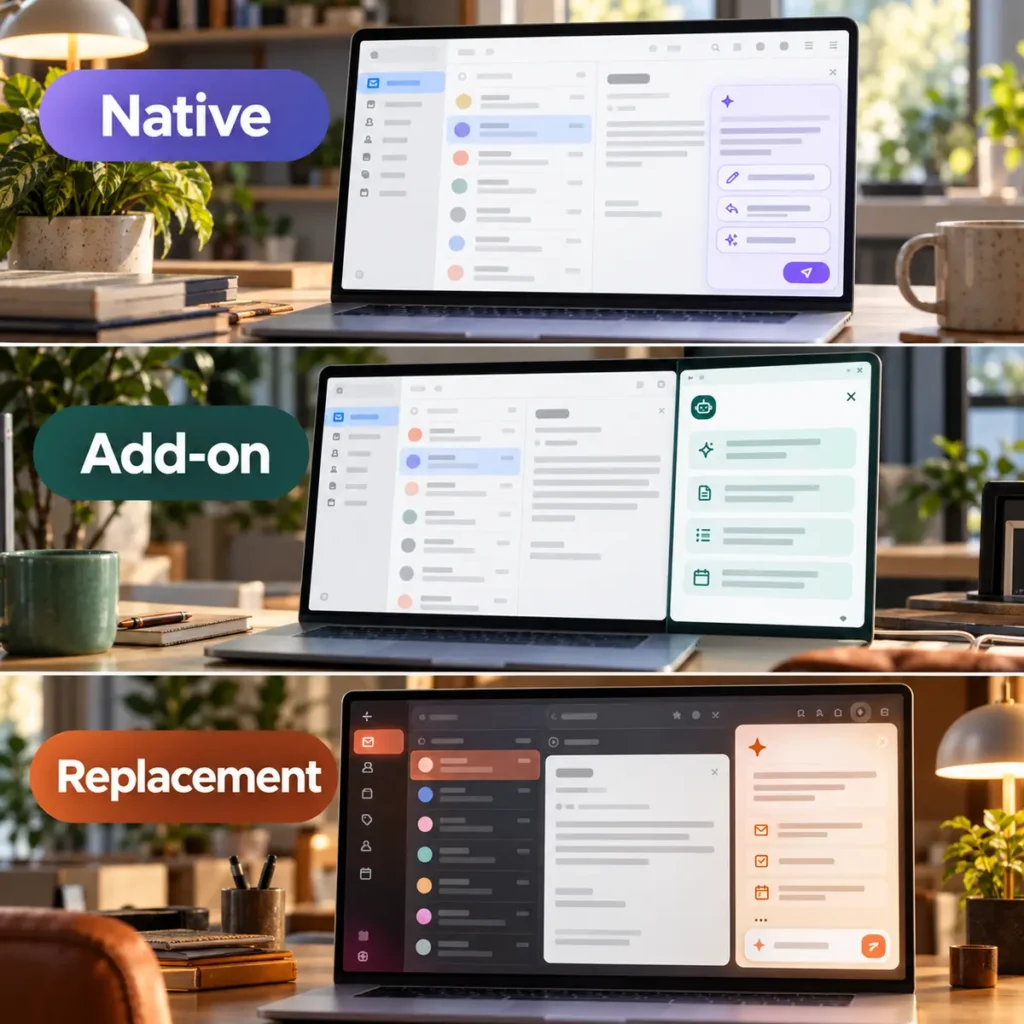
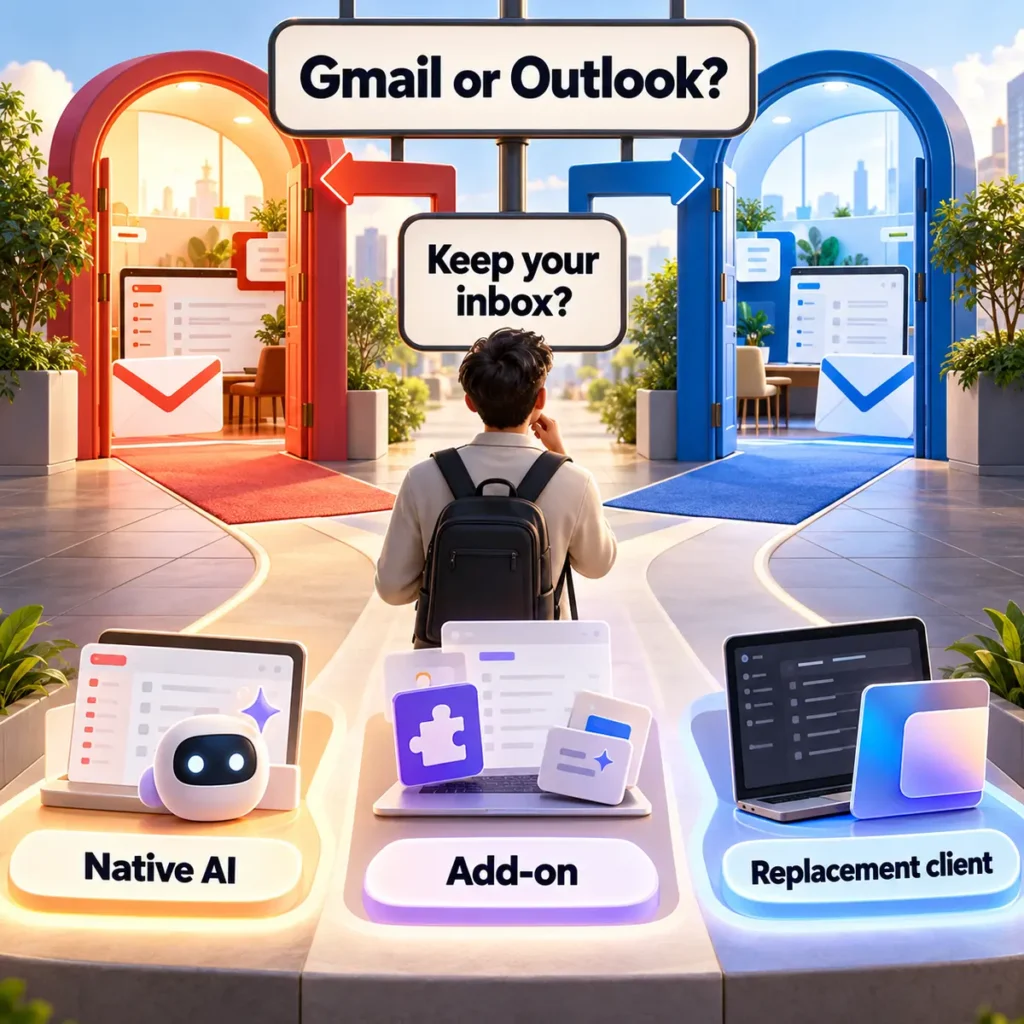
Native AI, Inbox Add-On or Replacement Client?
Many AI email comparisons place every product in one list. That hides the most important buying decision.
Native AI email assistant
A native assistant is built into the email service you already use.
Examples:
- Gemini in Gmail
- Microsoft Copilot in Outlook
This is the lowest-friction option. You keep the same interface, mobile app, account structure, labels, folders, and organizational controls.
Native AI is usually the best starting point when you mainly need:
- email drafting;
- thread summaries;
- inbox search;
- writing improvement;
- action-item extraction;
- calendar assistance.
Its weakness is that it may not reorganize your entire email workflow as aggressively as a specialist product.
Inbox add-on or connected assistant
An add-on connects to your existing mailbox and adds features inside or alongside Gmail and Outlook.
Examples:
- Fyxer
- MailMaestro
- SaneBox
- Fireflies Email Assistant
This approach is useful when you want stronger triage, automatic draft preparation, follow-up help, or personalized writing without learning a completely different email client.
The tradeoff is additional mailbox access. You must review the permissions, retention policy, security documentation, and what remains in your inbox after disconnecting the service.
Replacement email client
A replacement client connects to your Gmail or Outlook mailbox but gives you a different interface for reading and managing it.
Examples:
- Superhuman Mail
- Shortwave
A replacement client can change the entire experience through keyboard shortcuts, command menus, AI search, split inboxes, team collaboration, and specialized organization.
It also creates the highest switching cost. You must learn a new interface, check mobile support, and confirm that your mailbox provider is genuinely supported.
Shortwave, for example, is an AI email client for Gmail. It should not be recommended as a direct Outlook replacement.
How We Researched These AI Email Assistants
This is an editorial comparison based on current evidence, not a fake hands-on test.
We reviewed:
- official product pages;
- help centers and documentation;
- current pricing pages;
- Gmail and Outlook compatibility;
- whether the product stays inside or replaces the existing inbox;
- drafting, summaries, search, triage and follow-up functions;
- human-review requirements;
- important account and plan restrictions;
- privacy and security information;
- current competitor comparisons;
- recurring community complaints and workflow failures.
We gave greater weight to tools with a clear purpose than to products with the longest feature list.
An assistant that only drafts emails can still be the right choice for a person who does not want AI reorganizing the entire inbox.
AI Email Assistant Comparison
| Tool | Works With | Type | Best For | Free Option |
|---|---|---|---|---|
| Gemini in Gmail | Gmail | Native assistant | Google Workspace users | Availability depends on account and plan |
| Microsoft Copilot | Outlook | Native assistant | Microsoft 365 users | Features depend on account and license |
| Superhuman Mail | Gmail and Outlook | Replacement client | Speed and advanced inbox control | No ongoing free plan |
| Shortwave | Gmail only | Replacement client | AI search and Gmail organization | Trial and limited entry access |
| Fyxer | Gmail and Outlook | Connected inbox assistant | Triage, drafts and meeting context | 7-day trial |
| MailMaestro | Gmail and Outlook | Add-in | Affordable writing and summaries | 3 AI requests per week |
| SaneBox | Gmail, Outlook and others | Connected organizer | Low-cost prioritization | 7-day trial |
| Fireflies | Gmail and Outlook | Connected inbox assistant | Email and meeting context together | Email Assistant is listed with paid features |
Pricing and feature availability can change. Check the linked official pricing page before purchasing.
1. Gemini in Gmail — Best Native AI Assistant for Gmail
Best for: People already using Gmail and Google Workspace
Email support: Gmail
Type: Native assistant
Inbox replacement: No
Gemini in Gmail is the logical first option for someone who wants AI assistance without connecting another company to their mailbox or learning a different email app.
Gemini can summarize email threads, draft and refine messages, search for details from previous emails, identify action items, help organize messages, and work with Google Calendar.
It can answer requests such as:
- “Summarize this thread and list the decisions.”
- “Show unread emails from this client.”
- “Find the delivery date in my recent emails.”
- “Draft a concise reply confirming the deadline.”
- “Create a task from this message.”
- “Suggest meeting times based on my calendar.”
Where Gemini in Gmail is strongest
Gemini fits naturally when Gmail, Calendar, Drive, Docs, and other Google services already contain the context needed for the work.
There is no new primary inbox to check. The assistant appears inside Gmail, so the learning curve is lower than switching to a replacement client.
Limitations to know
Feature availability depends on account type, subscription, region, language, and rollout status. Personal Gmail accounts and business Workspace accounts do not always receive identical features.
Google also warns that Gemini can produce inaccurate or inappropriate suggestions. Generated summaries and replies still require review.
Pricing
Gemini features are included across current Google Workspace business plans, although individual features and limits can vary. Personal users may require an eligible Google AI plan.
Check Google Workspace pricing and the current Gmail AI eligibility information before choosing a plan.
Choose Gemini if: you already work primarily in Gmail and need summaries, drafting, search, tasks, and calendar help.
Skip it if: you need one assistant to manage both Gmail and Outlook accounts through the same interface, or you want a radically different inbox workflow.
2. Microsoft Copilot in Outlook — Best Native AI Assistant for Outlook
Best for: People and organizations already using Microsoft 365
Email support: Outlook and Microsoft 365 mailboxes
Type: Native assistant
Inbox replacement: No
Microsoft 365 Copilot brings AI directly into Outlook.
Depending on the account and license, Copilot can:
- summarize email conversations;
- draft complete messages from prompts;
- provide writing feedback on tone, clarity and sentiment;
- triage messages through actions such as pinning, flagging, archiving and deleting;
- help create or manage Outlook rules;
- schedule meetings from email conversations;
- answer questions about inbox and organizational information.
Thread summaries may include numbered references that lead back to the corresponding messages. That is useful when an important decision must be verified against the original conversation rather than accepted from an unsupported summary.
Where Copilot is strongest
Copilot becomes more valuable when email is part of a broader Microsoft 365 workflow involving Teams, Word, PowerPoint, OneDrive and organizational data.
It also avoids asking Outlook users to adopt an unfamiliar third-party email client.
Limitations to know
Some Copilot functions depend on whether you use a personal, work, or school account. Certain chat capabilities require new Outlook for Windows or Outlook on the web.
Copilot features may also be unavailable for signed, encrypted, rights-managed, or certain sensitivity-labelled messages.
Pricing
Microsoft offers Copilot through several individual and business configurations. The price and available Outlook features depend on the underlying Microsoft 365 plan and whether a Copilot license or add-on is required.
Check Microsoft 365 Copilot pricing rather than relying on an old fixed price.
Choose Copilot if: Outlook and Microsoft 365 are already central to your work.
Skip it if: you want one cross-provider inbox interface or your organization cannot approve the required license and data access.
3. Superhuman Mail — Best Replacement Client for Gmail and Outlook
Best for: Executives, founders, sales professionals and email-heavy teams
Email support: Gmail and Outlook
Type: Replacement email client
Inbox replacement: Yes
Superhuman Mail connects to Gmail or Outlook accounts but provides its own speed-focused email interface.
Its feature set includes AI writing, instant replies, automatic summaries, labels, reminders, search, scheduling, shortcuts and team collaboration. Higher plans add capabilities such as Auto Drafts, Ask AI, custom AI labels, CRM integrations and email access through supported AI tools.
Where Superhuman is strongest
Superhuman is designed for people who spend a significant part of the working day processing email.
The appeal is not one isolated AI feature. It is the combination of:
- a fast replacement interface;
- keyboard-driven navigation;
- writing assistance;
- inbox organization;
- follow-up features;
- scheduling;
- team collaboration.
Unlike Shortwave, Superhuman supports both Gmail and Outlook accounts.
Limitations to know
Superhuman requires a genuine workflow change. You are paying for and learning a new email client, not simply adding a button to Gmail or Outlook.
It is also one of the more expensive options. People with modest email volume may not save enough time to justify the subscription.
Pricing
Superhuman Mail currently starts at $25 per member per month when billed annually. Its Business plan, which includes more advanced AI features, currently starts at $33 per member per month when billed annually.
Verify current details on the official Superhuman Mail pricing page.
Choose Superhuman if: email is a major part of your job and you want a faster Gmail-and-Outlook-compatible replacement.
Skip it if: you only need occasional drafting help or do not want to leave the familiar Gmail or Outlook interface.
4. Shortwave — Best AI-First Replacement for Gmail
Best for: Gmail users who want natural-language search and deeper AI organization
Email support: Gmail
Type: Replacement email client
Inbox replacement: Yes
Shortwave is an AI email client built for Gmail.
It combines email with AI-powered search, summaries, attachment analysis, personalized writing, saved prompts, automatic follow-up reminders, calendar features, AI filters, bundles, delivery schedules and email-based task management.
Its strongest capability is turning an inbox into a searchable knowledge source.
Instead of remembering the exact sender or subject line, a user can ask a question such as:
“Which client emails mentioned a delayed September launch?”
Shortwave can also use search results as context for summaries, lists, drafts and other actions.
Where Shortwave is strongest
Shortwave is particularly attractive when ordinary Gmail search and organization no longer feel sufficient.
Its AI filters can take actions based on a written instruction rather than relying only on fixed sender or keyword rules.
The Outlook limitation
Shortwave’s official documentation describes it as an AI email client for Gmail.
An Outlook user should not choose Shortwave based on a third-party article that loosely lists it as an Outlook assistant. Confirm support from Shortwave itself before expecting a Microsoft mailbox to work.
Pricing
Shortwave offers a 14-day trial. Current business pricing starts at $30 per seat per month, with higher Premier and Max tiers for additional AI capacity and context.
Individual pricing and availability can differ. Check the official Shortwave pricing page.
Choose Shortwave if: you use Gmail and want AI search, organization, drafting and task management inside an alternative client.
Skip it if: Outlook support is required or you do not want to replace Gmail’s normal interface.
5. Fyxer — Best for Automatic Triage and Prepared Replies
Best for: Consultants, freelancers and client-facing professionals
Email support: Gmail and Outlook
Type: Connected inbox assistant
Inbox replacement: No
Fyxer works inside the Gmail or Outlook inbox you already use.
It can organize new messages into categories such as To Respond, FYI or Marketing, prepare replies in your writing style, connect email with calendar information, and use meeting context when preparing drafts.
Fyxer states that it prepares drafts but does not send emails on the user’s behalf. That human-review boundary is important for client-facing work.
Where Fyxer is strongest
Fyxer is useful when the problem is not merely writing an occasional message.
It targets a broader daily workflow:
- Sort incoming email.
- Identify messages needing attention.
- Prepare likely replies.
- Connect email with meeting notes.
- Help schedule follow-up activity.
Professionals who attend frequent calls may also appreciate the meeting notetaker. If meeting capture is the main requirement, compare our best AI meeting notes generators before paying for a broader email-and-meeting package.
Limitations to know
Fyxer is more expensive than a lightweight writing add-in.
Its meeting notetaker can join calls as another participant. That may create policy, consent, or client-comfort considerations.
Automated categorization also needs monitoring at the beginning. Any assistant can misunderstand which messages are urgent.
Pricing
Fyxer Starter currently costs $30 per user monthly or $22.50 per user per month when billed annually. It includes one connected inbox and calendar, draft replies and meeting notes.
Professional currently costs $50 monthly or $37.50 per user per month when billed annually. A seven-day trial is available.
Check the official Fyxer pricing page.
Choose Fyxer if: you want Gmail or Outlook to remain familiar while AI handles triage, drafts and meeting-related follow-up.
Skip it if: you need a free plan, do not want a meeting bot, or only send a few routine emails each week.
6. MailMaestro — Best Budget Add-In for Email Writing
Best for: Individuals and small teams that mainly need drafting and summaries
Email support: Gmail and Outlook
Type: Add-in or extension
Inbox replacement: No
MailMaestro adds AI writing assistance to Outlook through its add-in and to Gmail through a Chrome extension.
It can:
- compose messages from instructions;
- generate replies using thread context;
- improve existing drafts;
- adjust tone and length;
- summarize email threads;
- summarize supported attachments;
- provide reusable templates;
- help with meeting scheduling.
Where MailMaestro is strongest
MailMaestro is the most accessible starting point in this comparison for someone who wants specialized email writing without paying for an entire replacement client.
Its free plan currently allows three combined compose, reply, or improve requests per week. That is restrictive, but enough to understand the workflow before paying.
Gmail and Outlook are not identical
MailMaestro supports both platforms, but some inbox-management features are exclusive to Outlook or arrive there first.
Gmail users should verify that the specific feature they need is available in the Chrome extension rather than assuming full Outlook feature parity.
Pricing
The Professional/Team plan currently costs $15 per seat monthly or $12 per seat per month when billed annually. A 14-day full-feature trial is available.
Check the official MailMaestro pricing page.
Choose MailMaestro if: your main problem is writing, replying, improving and summarizing email at a lower price.
Skip it if: you want an entirely redesigned inbox or highly autonomous cross-application workflows.
7. SaneBox — Best Low-Cost AI Email Organizer
Best for: People who need inbox prioritization more than generative writing
Email support: Gmail, Outlook, Microsoft 365, Exchange, Yahoo, iCloud and other supported accounts
Type: Connected organization service
Inbox replacement: No
SaneBox takes a different approach from most tools in this comparison.
It works with the email app you already use and adds folders that separate less important messages from the main inbox. It can also provide follow-up reminders, snoozing, newsletter separation, screening and other organization features depending on the selected plan.
Where SaneBox is strongest
SaneBox is useful when inbox noise is the main problem.
It does not require users to move into a replacement client, and it supports more email providers than Gmail-only products.
What SaneBox does not replace
SaneBox should not be chosen primarily as an AI writing assistant.
It is stronger at filtering, prioritization and reminders than at generating context-rich replies or summarizing an entire project conversation.
Users also need to develop the habit of checking the additional folders. An organization system provides little value if important messages are moved somewhere the user forgets to review.
Pricing
SaneBox offers a seven-day trial.
Its current long-term pricing starts at approximately $4.54 per month when paid every two years for one account and two selected features. Plans with more accounts and features cost more.
Check the official SaneBox pricing page because the billing period materially affects the advertised monthly equivalent.
Choose SaneBox if: you want a lower-cost way to reduce inbox noise without switching email apps.
Skip it if: AI drafting, thread summaries, and natural-language inbox questions are your main priorities.
8. Fireflies Email Assistant — Best for Connecting Meetings and Email
Best for: Professionals who want email drafts grounded in earlier meetings
Email support: Gmail and Outlook
Type: Connected inbox assistant
Inbox replacement: No
Fireflies Email Assistant brings Fireflies’ meeting context into the inbox.
After connection, it can:
- apply smart labels to new incoming emails;
- prepare draft replies;
- create follow-up drafts when a recipient has not responded;
- surface email tasks in a Daily Brief;
- search email through AskFred;
- use available email and meeting context when preparing drafts.
Fireflies saves generated replies as drafts. Users review, edit, and send them manually.
Where Fireflies is strongest
The differentiator is the connection between conversations that happened in meetings and the follow-up email that comes afterward.
That can help consultants, sales teams and customer-facing professionals avoid writing a follow-up that ignores an agreement made during a call.
Limitations to know
Fireflies only labels and prepares drafts for new emails received after the Email Assistant is connected. It does not reorganize historical mail.
Drafts and follow-ups consume AI credits. Its current pricing page lists Email Assistant among paid Pro features rather than relying solely on the free meeting plan.
Pricing
Fireflies currently offers a free meeting plan. The Pro plan is listed at $18 monthly or $10 per seat per month when billed annually and includes Email Assistant.
Check the official Fireflies pricing page.
Choose Fireflies if: meetings and follow-up email are part of the same workflow.
Skip it if: you do not use Fireflies for meetings or want a standalone email tool without meeting features.
Gemini vs Copilot for Email
Gemini and Copilot are the safest starting points for users already committed to one productivity ecosystem.
Choose Gemini when:
- Gmail is your primary inbox;
- Google Calendar and Drive contain important work context;
- you want native search, summaries, drafting and organization;
- you do not want a new email interface.
Choose Copilot when:
- Outlook and Microsoft 365 are your standard tools;
- organizational information lives in Microsoft services;
- writing coaching and thread summaries are important;
- your organization manages Copilot licensing and permissions.
Neither is automatically the best choice for someone managing both Gmail and Outlook accounts. Superhuman, Fyxer, MailMaestro, SaneBox, and Fireflies offer varying forms of cross-provider support.
Superhuman vs Shortwave
Superhuman and Shortwave both replace the default inbox experience, but they are not direct equivalents.
Choose Superhuman when:
- you need Gmail and Outlook support;
- speed and keyboard-based processing matter;
- team collaboration and CRM integration matter;
- the subscription cost is justified by heavy email use.
Choose Shortwave when:
- Gmail is sufficient;
- AI-powered search is the priority;
- you want filters, bundles, tasks and calendar context;
- Outlook support is unnecessary.
The simplest distinction is:
Superhuman is the broader cross-provider professional email client.
Shortwave is the deeper Gmail-focused AI inbox.
How to Choose the Right AI Email Assistant
1. Identify the actual email problem
Do not buy an inbox replacement if the only problem is writing a polished reply once or twice a week.
Match the tool to the recurring problem:
- Slow writing: Gemini, Copilot or MailMaestro
- Long conversations: Gemini, Copilot, Shortwave or MailMaestro
- Inbox clutter: SaneBox, Fyxer, Shortwave or Superhuman
- Forgotten follow-ups: Fyxer, Fireflies, Superhuman or SaneBox
- Difficult inbox search: Gemini, Copilot, Shortwave or Fireflies
- Meeting-to-email follow-up: Fyxer or Fireflies
- One interface for Gmail and Outlook: Superhuman
- Native experience: Gemini or Copilot
2. Confirm real mailbox compatibility
“Works with Outlook” can mean several different things:
- it runs inside Outlook;
- it connects to a Microsoft 365 mailbox;
- it requires forwarding;
- it imports mail into another client;
- it only connects to the calendar, not the mailbox.
Verify the exact workflow from official documentation.
3. Decide whether AI may take actions
There is a major difference between:
- suggesting a reply;
- saving a reply as a draft;
- applying a label;
- moving a message;
- creating a calendar event;
- sending an email automatically.
Draft-only tools provide a useful safety boundary for sensitive client communication.
Scheduling is also a separate problem from inbox management. If constant calendar rearrangement is the main frustration, compare our best AI scheduling assistants rather than expecting an email writer to manage the entire workweek.
4. Calculate the incremental cost
Do not compare only advertised subscription prices.
Ask:
- Is AI already included in the software I pay for?
- Does the price cover one mailbox or several?
- Is the price monthly or annual-billed?
- Does the entry plan include the AI feature I need?
- Will every team member require a paid seat?
- Are AI credits or usage limits separate?
- Does the tool replace another subscription?
A $25 email client may be reasonable for someone processing email for several hours every day. It is unlikely to be worthwhile for light personal use.
5. Test failure recovery
During a trial, deliberately check:
- whether an important message is categorized incorrectly;
- how easily a label or folder decision can be corrected;
- whether generated drafts are saved or sent;
- whether the tool changes historical messages;
- what remains after disconnecting it;
- how to revoke mailbox access;
- whether mobile behavior matches the desktop experience.
Are AI Email Assistants Safe?

An AI email assistant may need access to sensitive client conversations, attachments, calendar details, contacts, and internal business information.
Before connecting one, check:
- Permissions: Can it only read email, or can it modify, delete and send?
- Human approval: Are replies saved as drafts or sent automatically?
- Retention: How long are email content and generated outputs stored?
- Model training: Is customer content used to train external models?
- Encryption: Is data encrypted in transit and at rest?
- Admin controls: Can an organization approve, restrict and audit access?
- Revocation: Can access be removed cleanly from Google or Microsoft account settings?
- Compliance: Does the provider’s documentation match your legal and industry requirements?
Google advises users to review the information and permissions requested by third-party applications before granting account access. Microsoft similarly allows users and administrators to review or revoke application permissions.
Native business assistants may inherit protections from Google Workspace or Microsoft 365, but that does not mean every third-party add-on receives the same protections.
Do not paste or connect confidential material merely because a product calls itself secure. Check the current privacy policy, security page, subprocessors, retention rules, and administrator requirements.
AI Email Assistant or Project Management Software?
Email AI can identify action items, but an inbox is not always the right place to manage ongoing work.
Use an email assistant when the work is mainly:
- reading;
- replying;
- prioritizing;
- following up;
- scheduling from conversations.
Use a project-management system when the work needs:
- owners;
- deadlines;
- dependencies;
- recurring workflows;
- shared project status;
- structured client delivery.
If tasks keep disappearing inside email threads, compare our best project management software for freelancers rather than expecting an email assistant to become the entire delivery system.
Is an AI Email Assistant Worth Paying For?
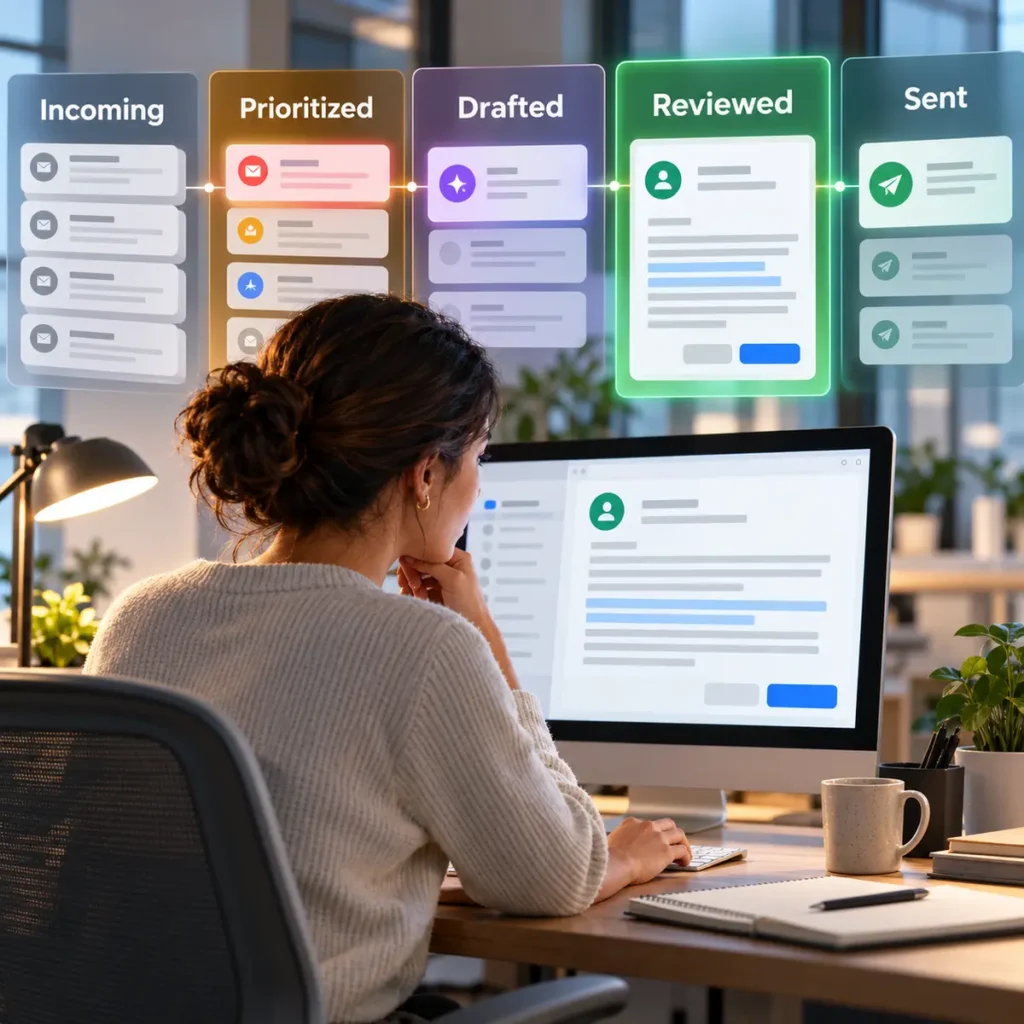
An AI email assistant is worth paying for when it removes a frequent and measurable source of work.
A paid tool makes more sense when:
- you process dozens of important emails each day;
- delayed responses affect clients or revenue;
- you repeatedly reread long conversations;
- routine replies consume meaningful time;
- follow-ups are frequently forgotten;
- multiple inboxes need one workflow;
- email and meeting information must stay connected.
A paid assistant may not be worthwhile when:
- email volume is low;
- built-in Gmail or Outlook features are sufficient;
- most messages are personal;
- your organization will not approve mailbox access;
- generated replies require almost as much rewriting as writing manually;
- you do not want to change your existing inbox habits.
During a trial, measure the real difference:
Time saved each week − time spent correcting AI mistakes and managing the tool
That calculation is more useful than a vendor’s general productivity claim.
Frequently Asked Questions
What is the best AI email assistant for Gmail and Outlook?
Superhuman Mail is the strongest replacement client supporting both Gmail and Outlook. Fyxer is a better fit if you want AI triage and draft preparation while continuing to use the existing Gmail or Outlook interface.
Gemini is the strongest native Gmail choice, while Microsoft Copilot is the strongest native Outlook choice.
Does Gmail have a built-in AI email assistant?
Yes. Gemini in Gmail can summarize conversations, draft and refine messages, search email, identify action items, organize messages, and help with calendar-related work. Availability depends on the account, plan, region, language, and feature rollout.
Does Outlook have a built-in AI email assistant?
Yes. Microsoft Copilot in Outlook can summarize threads, draft messages, coach writing, help triage email, manage rules, and assist with scheduling. The exact features depend on the Microsoft 365 account and license.
Is Shortwave compatible with Outlook?
Shortwave’s official documentation describes it as an AI email client for Gmail. Outlook users should not assume compatibility based only on third-party comparison articles.
What is the best free AI email assistant?
MailMaestro has a limited free plan with three AI writing requests per week. Gmail and Outlook also include some intelligent email features, but access to their more advanced Gemini and Copilot capabilities depends on the account and subscription.
Free plans are useful for light use, but automated triage, broader context, and higher AI limits usually require payment.
Can an AI email assistant send emails automatically?
It depends on the product and settings.
Fyxer and Fireflies prepare drafts for human review rather than sending them automatically. Other automation platforms may support sending when explicitly configured.
Always verify the default behavior before granting mailbox access.
Can AI email assistants learn my writing style?
Some assistants can personalize drafts using previous sent messages, writing instructions, templates, or tone preferences. The result should still be reviewed because an assistant can imitate surface style while misunderstanding intent, relationships, or sensitivity.
Are AI email assistants safe for client emails?
They can be appropriate when their permissions, retention, encryption, model-training policy, and compliance controls meet your requirements.
For confidential work, obtain organizational approval and begin with draft-only automation. Never assume that every tool using Google or Microsoft login follows the same data policy as Google Workspace or Microsoft 365.
Should I use native email AI or a third-party assistant?
Start with native AI if it solves your main problem. It requires less workflow change and may already be included in your productivity subscription.
Use a third-party assistant when you need cross-provider support, stronger prioritization, personalized drafts, follow-up automation, meeting context, or a replacement inbox experience.
Final Verdict
The best AI email assistant is the one that removes your specific email bottleneck without creating a more complicated inbox.
Choose Gemini in Gmail for the best native Google experience.
Choose Microsoft Copilot in Outlook for the best native Microsoft experience.
Choose Superhuman Mail when you want a premium replacement client supporting both Gmail and Outlook.
Choose Shortwave when you use Gmail and want deeper AI search and organization.
Choose Fyxer when you want automatic triage, prepared replies, and meeting context without replacing your inbox.
Choose MailMaestro when affordable email writing and summaries are the priority.
Choose SaneBox when filtering and prioritization matter more than generative writing.
Choose Fireflies Email Assistant when meetings and email follow-up need to share the same context.
Start with the least disruptive option that solves the problem. Replace your inbox only when the expected time savings justify the price and the workflow change.