The best focus apps and website blockers solve different problems. Freedom is the strongest all-round choice when distractions follow you between a phone and computer. Cold Turkey Blocker is better when you need a strict desktop lock that is difficult to escape. AppBlock is the more practical strict option for phones, while LeechBlock NG is the best place to start if you only need a completely free browser blocker.
That distinction matters because a blocker can look powerful and still fail in your real working day. A browser extension cannot stop a desktop game. A desktop blocker cannot help when you pick up your phone. A gentle reminder will not work if you immediately dismiss it—but a rigid lock may be too disruptive if you occasionally need emergency access.
This guide compares seven focus tools by the place distraction happens, how easy the block is to bypass, free-plan usefulness, device coverage and recovery options. Pricing and product details were checked in September, 2026, but app-store prices and promotions can change.
Quick answer: Choose Freedom for several devices, Cold Turkey for strict Windows or Mac blocking, AppBlock for strict phone controls, Opal for polished phone-first rules and reports, LeechBlock for free browser blocking, one sec for breaking automatic app-opening habits, and Forest if starting a focus session is harder than staying locked out.
Editorial note: Tool Sphera did not insert affiliate links in this article. Recommendations are based on current official product information, documented limitations and the problem each tool is designed to solve—not on commission.
Table of Contents
Quick Comparison of the Best Focus Apps and Website Blockers
| Tool | Best for | Coverage | Free option |
|---|---|---|---|
| Freedom | Blocking across several devices | Windows, Mac, iOS, Android, Chromebook/Linux | Limited free account |
| Cold Turkey | Strict desktop lockouts | Windows and Mac | Useful basic website blocking |
| AppBlock | Strict mobile controls | iOS, Android and supported browsers | Limited blocks, schedules and Strict Mode |
| Opal | Polished rules and screen-time reports | iOS, Android and Mac | One-rule free plan |
| LeechBlock NG | Completely free browser blocking | Firefox, Chrome, Edge and Chromium browsers | Completely free |
| one sec | Interrupting automatic app opening | iOS, Android and browsers | One target app |
| Forest | Motivation and starting focus sessions | iOS, Android and browser extensions | Varies by platform |
How We Evaluated These Focus Apps
A long feature list does not make an app a good blocker. We compared each option using six practical questions:
- Blocking scope: Does it block websites, mobile apps, desktop applications or the whole internet?
- Resistance: Can you end the session, change the settings, switch browsers, uninstall the tool or move to another device?
- Device coverage: Does one rule protect the devices you actually use?
- Free-plan usefulness: Can the free version solve a real problem, or is it only a short demonstration?
- Recovery: Can you allow essential work sites or regain access safely if you block the wrong thing?
- Fit: Is the tool designed for a strict lock, a gentle interruption or motivation?
We used current official product pages, help documentation and public pricing information. We also examined recurring community complaints: native limits are often easy to extend, mobile permissions can create escape routes, and a desktop-only tool does nothing when the phone remains available. Those complaints shaped the ranking more than cosmetic features did.
Choose a Blocker by Your Distraction Leak
The most useful question is not “Which focus app has the most features?” It is “Where do I escape when I should be working?”
- You lose time inside one browser: Start with LeechBlock NG.
- You switch to desktop apps, games or another browser: Use Cold Turkey Blocker.
- You move between a phone and computer: Use Freedom.
- Your phone is the main problem and you need stronger rules: Compare AppBlock and Opal.
- You open the same app without deciding to: Try one sec.
- You struggle to begin a work session: Forest may work better than a punishing lock.
A blocker protects a task; it does not decide what that task should be. If the real problem is a vague workload rather than distraction, start with our best project management software for freelancers guide and choose the work before locking anything.

The 7 Best Focus Apps and Website Blockers
1. Freedom — Best Cross-Device Website Blocker
Freedom is the best overall choice for someone who starts work on a laptop, checks something on a phone and then loses the session on another device. It supports Mac, Windows, iOS, Android and Chromebook/Linux, and its main advantage is the ability to run a blocking session across signed-in devices.
The free account is suitable for trying the basic blocking workflow. Premium adds scheduling, recurring and advance sessions, sessions longer than two hours, multi-device functionality and Locked Mode. At the time of checking, Freedom listed Premium at $39.99 per year or $8.99 per month; its lifetime offer was promotional and should be rechecked before publishing or buying.
Choose Freedom if: your biggest loophole is moving from one device to another.
Skip it if: you only need to block a few sites in one browser. A free extension may be enough.
Important limitation: Cross-device coverage still depends on installing Freedom, signing in and granting the necessary permissions on every device you want protected.
2. Cold Turkey Blocker — Best Strict Blocker for Windows and Mac
Cold Turkey Blocker is the strongest choice in this list for a desktop user who already knows they will try to escape. It can block websites, applications, games, parts of the internet or the entire computer. Locked blocks are designed to resist stopping and uninstalling until the chosen period ends.
The free version includes basic website blocking, timed blocks and statistics. Pro adds application blocking, scheduled blocks, passwords, breaks and stronger locking controls. The company sells Pro as a subscription-free, one-time purchase, but the live amount is shown inside the app and can vary; check the current upgrade screen rather than relying on an old price quoted elsewhere.
Choose Cold Turkey if: distraction happens on a Windows or Mac computer and a soft reminder is too easy to ignore.
Skip it if: your phone is the real escape route. Cold Turkey does not provide a native iOS or Android blocker.
Important limitation: Strictness creates risk as well as value. Test allowlists and essential work sites before locking a long session.
3. AppBlock — Best Strict App Blocker for Phones
AppBlock is the better fit when the phone—not the desktop browser—is the main source of distraction. It supports scheduled blocking, usage limits, launch-count limits and Strict Mode. Depending on the selected condition, Strict Mode can make it harder to change or disable a block during a weak moment.
Its free limits differ between Android and iOS. Current official comparisons show restrictions on the number of blocked items, schedules and the duration or conditions available in Strict Mode. Premium removes many of those limits. Because pricing is delivered through app stores and can vary by country, use the price displayed on your device.
Choose AppBlock if: you want strong phone controls and like detailed conditions rather than one simple timer.
Skip it if: you need one centrally managed block across several computers and phones. Freedom is clearer for that job.
Important limitation: Mobile operating systems control what a third-party blocker is allowed to do. Complete the permission setup, then deliberately test your normal bypass route before trusting a schedule.
4. Opal — Best Polished Phone-First Focus App
Opal combines app blocking with rules, timers, focus history and an interface designed to make screen-time patterns easier to understand. It is available on iOS, Android and Mac. Its free plan includes a limited rule; Pro adds Hard Mode, unlimited rules, advanced timers, Allow Only controls and longer score history.
At the time of checking, the annual Pro plan was $99.99, the monthly plan was $19.99 and a $399 lifetime option was listed. Those are meaningful prices, so the free version should be used to confirm that Opal changes your behavior before upgrading.
Choose Opal if: you want a polished phone-first experience and care about rules and progress reporting as much as the block itself.
Skip it if: you use Windows or want the cheapest strict solution.
Important limitation: Hard Mode is a paid feature, and Opal is not a native Windows blocker.
5. LeechBlock NG — Best Free Website Blocker
LeechBlock NG is the best free option when the problem lives inside your browser. It is available for Firefox, Chrome, Edge and other Chromium-based browsers. You can create up to 30 block sets with different schedules and time limits, use wildcards and exceptions, start a lockdown, and protect settings with a password or random access code.
There is no premium tier to unlock. That makes LeechBlock unusually useful for someone who wants real scheduling and access controls without a subscription.
Choose LeechBlock if: you work in one browser and want a capable free website blocker.
Skip it if: you can simply open another browser, launch a desktop app or pick up your phone.
Important limitation: It is a browser extension, not a system-wide lock. That boundary should be treated as a design fact, not a hidden weakness.
6. one sec — Best for Breaking Automatic App-Opening Habits
one sec takes a different approach. Instead of relying only on a hard wall, it inserts a deliberate pause before a distracting app or website opens and can ask you to state your intention. That interruption targets the moment when your hand opens an app before you have consciously decided to use it.
The free version lets you target one app, which is enough to test the idea on your biggest distraction. Pro expands coverage. The company cites peer-reviewed research reporting fewer app openings among users, but your result will still depend on whether impulsive opening—rather than deliberate avoidance—is your real problem.
Choose one sec if: you repeatedly open the same social or news app on autopilot.
Skip it if: you want a locked session that you cannot negotiate with.
Important limitation: Friction is not the same as prohibition. A person who routinely ignores prompts may need a stricter blocker.
7. Forest — Best Motivational Focus Timer
Forest turns a focus session into a growing virtual tree. Leaving the session can damage the tree, while completed sessions build a visible forest. It also offers app blocking, statistics, group focus and browser extensions.
Forest belongs in this comparison because not every distraction problem requires stronger punishment. Some people already know what to do but need a small ritual that makes starting feel concrete. In that situation, a growing tree can be more sustainable than a harsh lock.
Choose Forest if: beginning a session is your biggest obstacle and visible progress motivates you.
Skip it if: you need the most difficult possible block to bypass.
Important limitation: Forest is primarily a motivational focus timer. It should not be treated as equivalent to a system-level desktop lock.
What Is the Best Free Website Blocker?
LeechBlock NG is the best completely free website blocker for a person who works inside one supported browser. Its schedules, time limits, lockdown and access controls are substantial rather than a temporary trial.
Cold Turkey Free is better when you want a desktop foundation and may later need system-level application blocking. AppBlock’s free plan is more relevant to phone distraction, although its blocked-item, schedule and Strict Mode limits vary by mobile platform. Freedom and one sec are useful for testing their respective workflows, but their strongest multi-device or multi-app features require an upgrade.
“Free” is therefore not one category. Choose the free plan that covers your actual leak:
- Browser tabs: LeechBlock NG
- Desktop websites: Cold Turkey Free
- A small number of phone distractions: AppBlock Free
- One automatic app-opening habit: one sec Free
Strict Blocking vs Gentle Friction
A strict blocker removes the decision after a session starts. That is useful when the same pattern keeps repeating: start work, feel discomfort, open a distraction, extend the limit and promise to do better tomorrow. Cold Turkey, AppBlock Strict Mode, Freedom Locked Mode and Opal Hard Mode are designed for versions of that problem.
Gentle friction keeps the decision but slows it down. one sec asks you to pause; Forest gives the session a visible cost and reward. These tools may be better when you need occasional legitimate access or tend to rebel against rigid restrictions.
Start with the least restrictive setting that survives your normal behavior. If you dismiss it for three sessions in a row, increase resistance. If a hard block repeatedly interrupts legitimate work, loosen it and improve the allowlist. The goal is reliable focus, not winning a contest against your own software.
Cross-Device Blocking vs Browser-Only Blocking
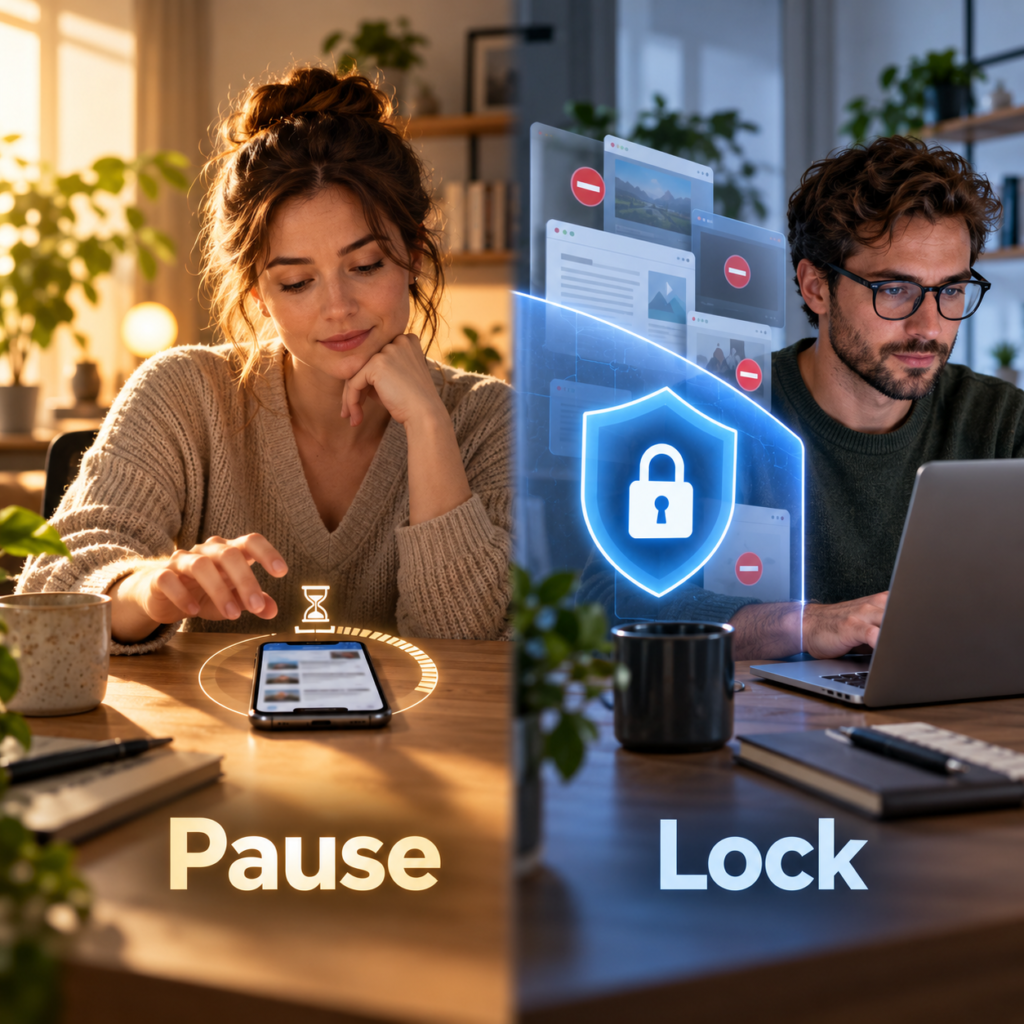
Cross-device blocking is worth paying for only when the second device is a real escape route. If you block social media on a laptop and immediately open it on a phone, a browser extension is solving only half the problem. Freedom is the clearest fit for one coordinated session across several device types.
If distraction stays inside one work browser, cross-device software adds cost and setup without necessarily adding value. LeechBlock can be more precise, cheaper and easier to maintain. Cold Turkey sits between these approaches: it reaches beyond the browser on a desktop, but it does not follow you to a phone.
Scheduling also solves a different problem from blocking. If meetings and calendar chaos prevent focus time from existing at all, compare our best AI scheduling assistants. A scheduling assistant can reserve the block; a focus app can protect your attention after it begins.

Try Built-In Screen-Time Tools Before Paying
Apple Screen Time and Android Digital Wellbeing are reasonable first steps. They can expose usage patterns, set app timers and schedule downtime or Focus Mode without another subscription.
Use them for a week if your goal is awareness or a modest limit. Move to a dedicated blocker when you repeatedly extend the limit, need website-level control, want stronger settings protection, or need rules that span device types. Built-in controls are a baseline, not proof that a paid app is necessary.
Run This 48-Hour Blocker Fit Test
Do not buy a yearly plan because a product page sounds strict. Test the failure point first.
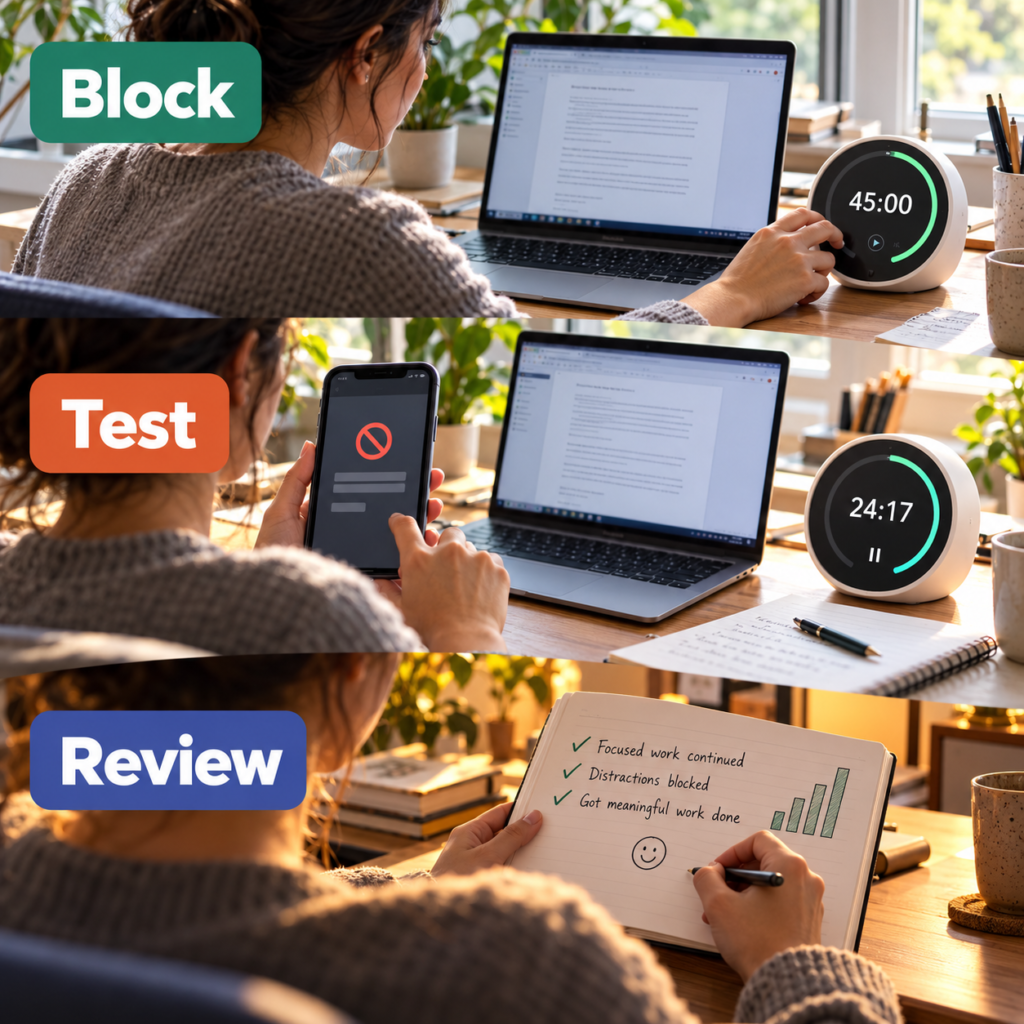
- Name one escape route. Choose a specific site, app or device—not “the internet.”
- Create a 45-minute block. Allow only the services genuinely required for the task.
- Try your normal bypass. Switch browsers, open the phone, change the time, edit the rule or attempt to end the session.
- Test an essential exception. Confirm that client communication, password recovery or necessary research still works.
- Repeat on the second day. A setup that works once may become irritating when repeated.
- Review the result. Keep the tool only if it reduced the target behavior without creating a larger workflow problem.
To see whether protected sessions become useful work rather than merely blocked time, compare them with recorded client or project hours. Our best free time tracking software for freelancers guide shows how to measure that without paying first.
Frequently Asked Questions
What is the best app to block distracting websites?
Freedom is the best overall option when websites need to be blocked across several devices. Cold Turkey is better for a strict Windows or Mac setup, while LeechBlock NG is the best completely free browser-only option.
What is the hardest website blocker to bypass?
Cold Turkey is the strongest desktop recommendation in this comparison because locked blocks are designed to resist stopping and uninstalling. On phones, AppBlock Strict Mode and Opal Hard Mode provide stronger resistance than a simple reminder, but mobile operating-system permissions still matter.
Is there a completely free website blocker?
Yes. LeechBlock NG is free and supports detailed schedules, time limits, lockdowns and access controls in Firefox, Chrome, Edge and Chromium-based browsers. It does not block desktop applications or every device.
Can one app block websites on both my phone and computer?
Yes. Freedom is designed for synchronized sessions across computers and mobile devices. The app must be installed, signed in and correctly permitted on each device included in the session.
Are app blockers safe?
Reputable blockers still require sensitive permissions to see or restrict apps and websites. Download from the official site or app store, review the requested permissions and privacy policy, and test a short session before using a long lock. Do not use a productivity blocker as parental-control or security software unless the developer explicitly supports that purpose.
Should I use a focus timer or a strict blocker?
Use a timer such as Forest when starting is the main difficulty and motivation works. Use a strict blocker when you repeatedly abandon an already-started task by opening the same distraction. one sec offers a middle ground by adding friction without always imposing a complete lockout.
Final Verdict
Freedom is the best overall focus app for people whose distractions move between devices. Cold Turkey is the best strict desktop blocker, AppBlock is the strongest phone-first choice for detailed restrictions, and LeechBlock NG is the best free website blocker for a single browser. But the correct purchase is determined by the loophole, not the ranking. Identify where you escape, test that route for 48 hours and pay only if the blocker survives your real behavior. A smaller tool that closes the right door will help more than a feature-rich app installed on the wrong device.